A Better Way to View Logs in Kudu for Azure App Service on Linux
Logs are often the fastest way to understand what is happening inside your application. Whether you are investigating startup behavior, runtime errors, failed requests, dependency issues, or unexpected application behavior, having the right log view can make troubleshooting much easier.
To make this easier, we have added a new Logs page in Kudu for Azure App Service on Linux. The new experience gives you a single place to stream, browse, search, and filter logs so you can understand what is happening in your app faster.
Opening the Logs page
You can open Kudu from the Azure portal:
- Go to your App Service.
- Select Advanced Tools.
- Click Go.
You can also open Kudu directly by going to:
https://<app-name>.scm.azurewebsites.net
From there, open the Logs page.
View live logs across your app and platform
The Logs page lets you view logs as they are being written, with filters for timeframe, instance, container, log type, and level.
This helps when you want to focus on a specific instance, look only at errors, or separate application logs from platform events.
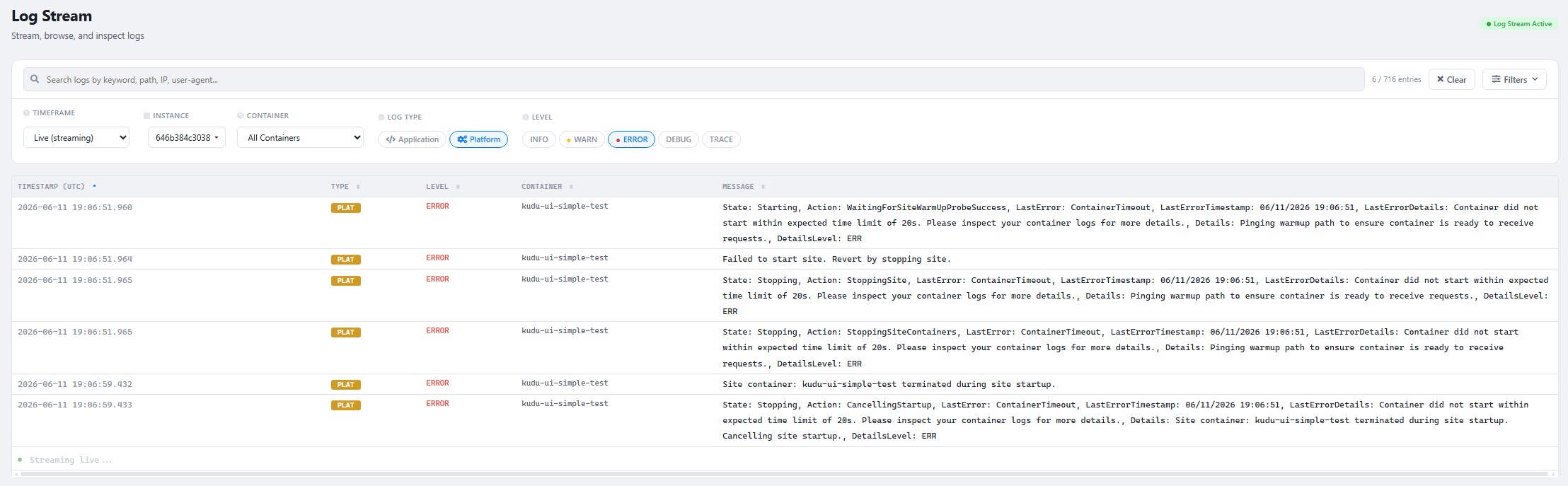
For example, you can use platform logs to understand container lifecycle events, restarts, startup behavior, warmup probe activity, and other platform-side events related to your app.
Quickly find the log entries that matter
You can use keyword search to narrow down the log stream or historical logs. This is useful when you are looking for a specific error message, request path, exception, dependency failure, timeout, or any application-specific keyword.
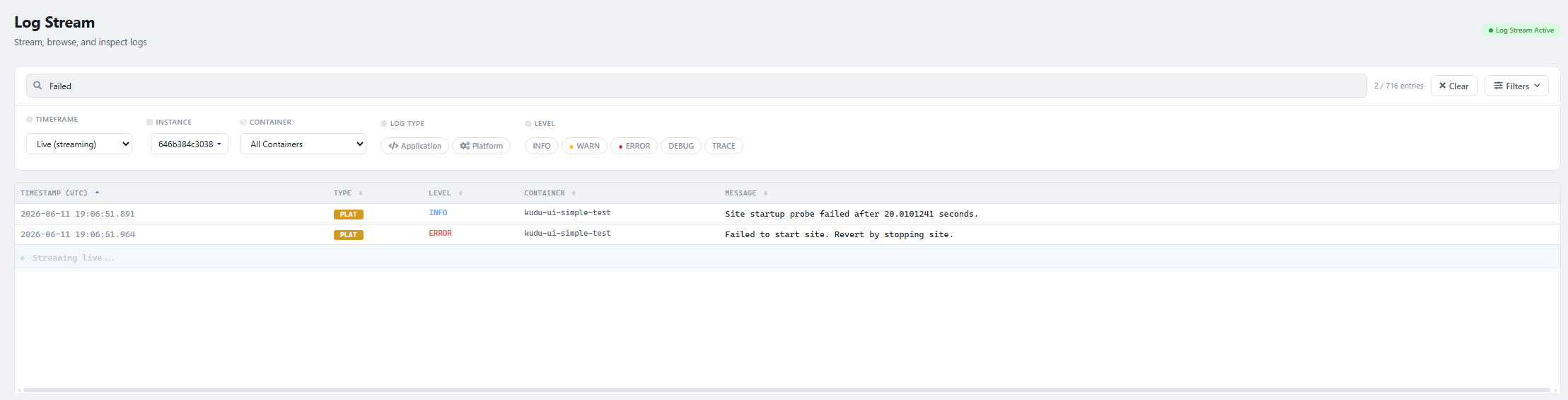
Instead of scanning through hundreds of entries, you can search for the terms that are relevant to the issue you are investigating.
Investigate issues within a specific timeframe
The Logs page also supports viewing logs for a selected time range. This is useful when you know when an issue occurred and want to inspect both application and platform activity around that time.
For example, you can filter to a specific timeframe, switch to Application logs, and check what your app was doing when the issue happened.
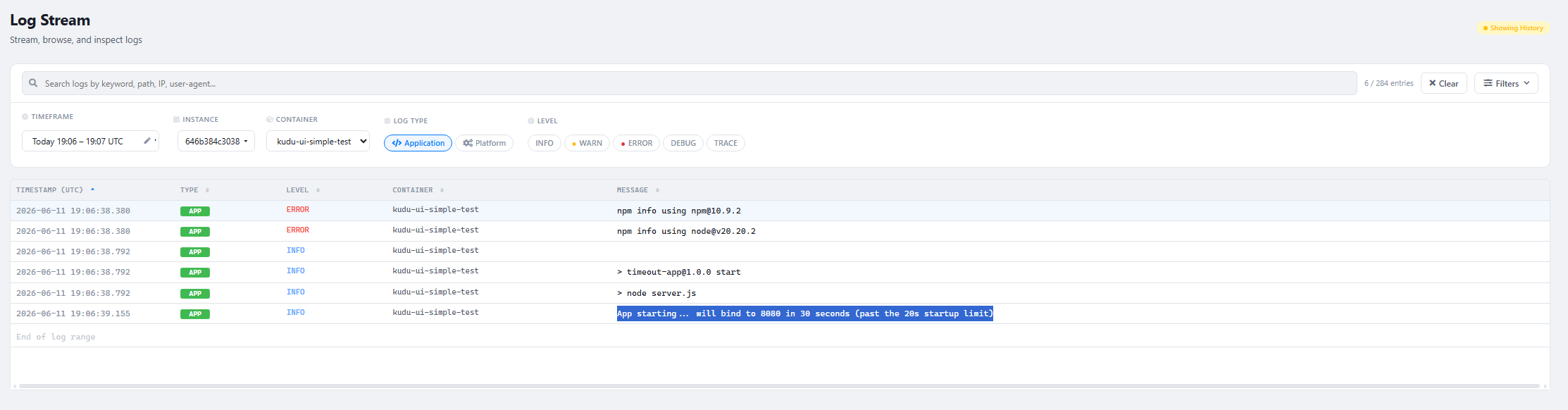
This can help you troubleshoot scenarios such as failed requests, application exceptions, slow startup, container restarts, dependency issues, or configuration problems.
Summary
The new Logs page in Kudu makes it easier to work with logs for Azure App Service on Linux. With live streaming, keyword search, historical views, and filters for application and platform logs, you can quickly narrow down the information you need and troubleshoot issues more efficiently.
We are continuing to improve the App Service Linux experience to make diagnostics simpler and more useful for day-to-day development and operations.
